Thursday, 13 March 2014

13th March 2014; Duplicating special, inspired by grouping tutorial, then some animation with a camera and aim.

In this post, I will create a ship with several parts to it that will each animate separately. So I plan on creating sails, a sail shaft and a turbine at the back of the boat. All will be grouped together and then animated as one object. This idea was inspired by the grouping tutorial in my previous blog.


Above and below I have used duplicate special on the one blade I made, so when I edit the parent it will carry over to the duplicates.
Below I divided 360 by 5, and got the number I needed for the rotation input in the duplicate special window.


When I grouped the blades together the centre point of the group moved to the centre so I had to reset the centre point or it, which puts it in the middle of the group when I click the option (shown below).


Below I created a simple pipe part for the blades to circle around it. I added divisions to create an indent into the pipe.

I created a pole for the sails to animate around and the created the sail.

Below I am moving the centre point of the sail so that when I go to animate it will rotate from the pole.


I then grouped the sails with the pole and then set their rotation point to the centre of the pole.


Using a Camera and aim, I have been able to create a nice animation of the boat sailing past the camera, with the boat as the aim of the camera. 


In order to render this quickly I am going to create a playblast video, which quickly takes the frames from the timeline and uses them to create a mock-up scene animation.
I know of the playblast ability, but don't know how to use the feature, so I will look it up quickly.

at first I was having a problem with trying to find the setting for the playblast to render the camera's view, until I realised that I had to change the view in the editing mode to camera perspective for this to work.

I have added materials to the boat to make the movie a tad bit more interesting.
An important thing to do when doing a batch render is to make sure that the renumber frames option is ticked, otherwise the frame will save over themselves.

Below, an application opens up and it shows the progress of the rendering frames and them saving.



I have saved the final file on Disc


Monday, 10 March 2014

10th March 2014; Bump mapping test


 Today a friend of mine came to visit and showed me what to do when using bump map texturing. He also showed me how to create a diffuse


I have added many images to this material to give it a very nice multi purpose effect. Below I have downloaded an Image of cracked earth i order to learn about bump mapping.


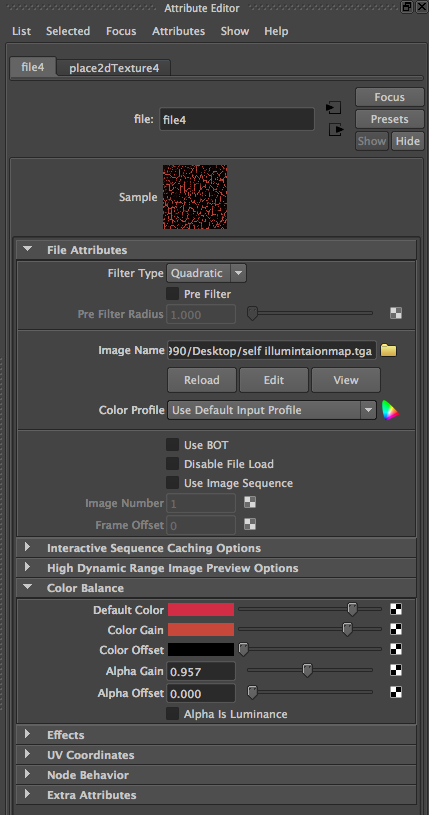
Below are the three images I have created from the image above as well as how I used them to create the multi layered texture. The first is the self illumination map, which is used/created to give a source of lighting from a texture. so with this example, I hoped to create  a crack floor with lava underneath it. The cracks/the glowing sections are white, whilst section that I don't want to glow is black.


The second texture is used for the bump map texture, which uses the dark section of the texture to make the material look like it is being indented into.


Below is the bump mapping options, to which I have simply added the file for the bump map to render from.


Thursday, 6 March 2014

6th March 2014; Finally there, Animating

I think I have learnt a lot with this one model, applying new modelling techniques to it as well as beginning to understand lighting a lot more along with shadows and textures.
I also plan on finding out how to create a camera at the current view.

The tutor has just shown the class the graph editor. This can be used to see time and the spacial location of objects in one simple graph. The x axis is the time-line and the Y axis gives three dots of information, each describing the value of the the X,Y and Z coordinates of the object selected.


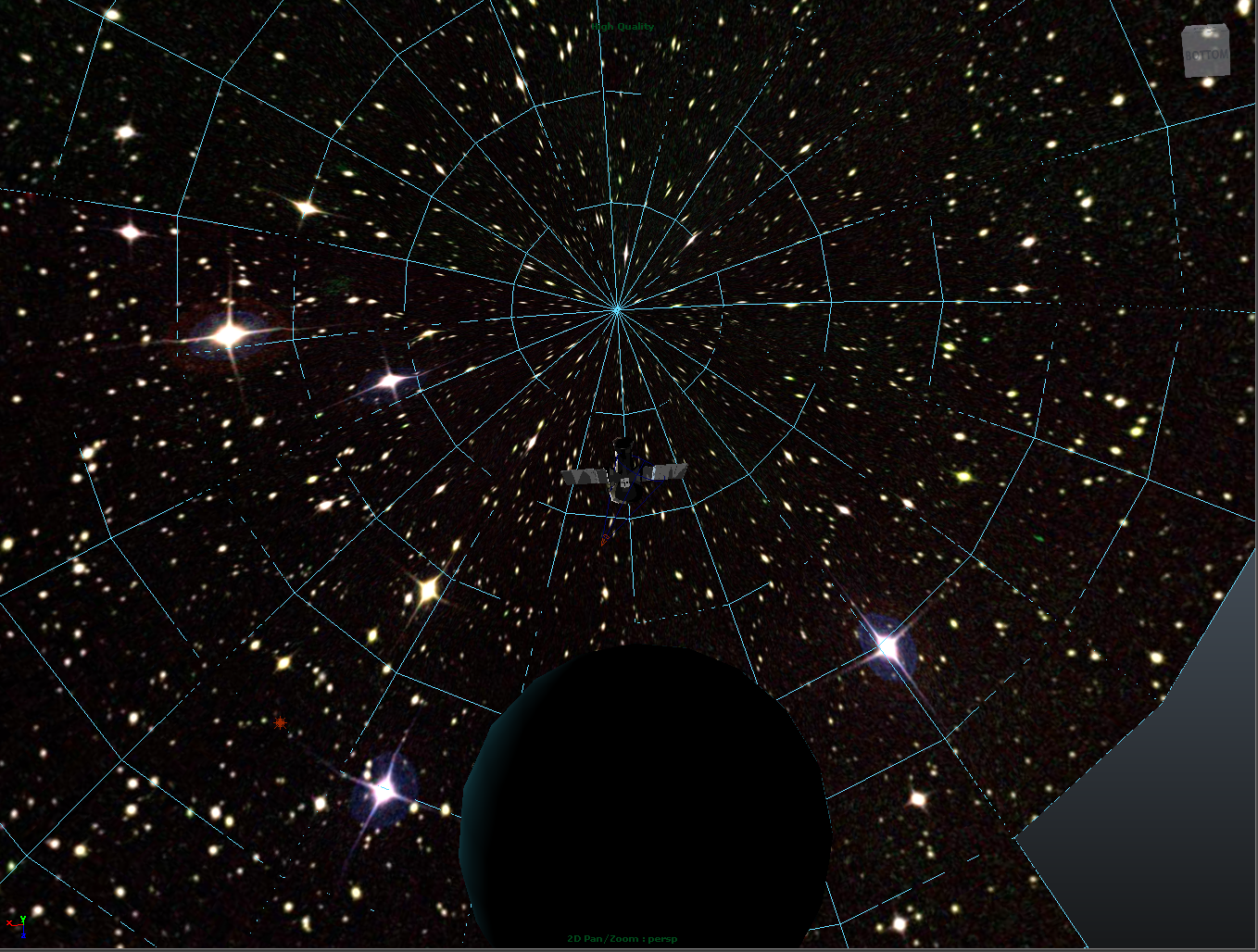
I have downloaded a texture for the space and the globe, to make them look more in place.


Above the image of space looks very muted in comparison to the source image.


Above I have been able change the texture to being a higher quality by cutting the object in half, making it a semi-sphere. I then reapplied the material and it reloaded as being sharper.

Animating:
Attempting to create a globe spin, the spin seems to alter itself and it looks like the planet wobbles more than spins.

I just learnt about grouping from my tutor. First of all he was trying to fix the wobble rotation I had created and then showed me animating inside of a group. The only comparison I can draw is where in flash I am able to create a symbol, which can have animations inside of it and be moved all as one.
Basically, the group allows an animation of an object inside of a group that can be moved together, without altering the singular.
An example below is the planet being animated and then placed inside of a group and re-translated by rotation.


To make a moon rotate around the earth, use the up diagonal key to change to centre point selection and move it to the centre of the earth, giving rotation axis.


Using the field chart I was able to relocate the centre of the moon to the centre of the earth, giving a more central gravitation.


I searched how to add an object to a group and have found this link, but it didn't have the explanation I was looking for;
http://forums.cgsociety.org/archive/index.php/t-634036.html

Here I have found a great tutorial, which explains the special duplicate I was unsure of with the tutorial, as well as showing me what I needed to know now. The grouping of objects.

Vimeo Tutorial


With the duplicate special, there is an option to make the initial object the parent of the other duplication so that any changes made to the original, effect the duplicates.
CMD + G, two objects selected

A way of explaining how groups work is that there is a big difference between grouping objects and selecting multiple objects. The difference is group objects work as one object, whereas the multiple objects work on their own and rotate to their own standards.


Camera: to create a cut, simply place keyframe straight after latest and move camera to new location, acts as a cut.

Thursday, 13 February 2014

13th February 2014: lighting and the problem of not extruding

The the day I was attempting to light up a scene I had made, however because the edges are so thin, they haven't got any thickness to them, this messes up the lighting and I had this pointed out to me by my tutor.
Today I will fix this lighting problem by combining the ships inside and outside to make it one object with thickness.


Using the append to polygon tool I will fix the gap created by trying to extrude the solar panel sections.


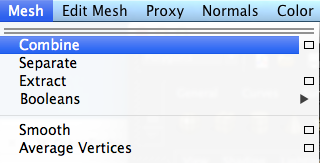
Above I combined the two meshes, the one that is the outside of the and the one that is the inner wall o the space ship. Then I mirrored the model and it should now be complete

I now believe I have given the space ship thickness, which will stop the light flowing through the walls.


Furthering my studies of lighting and how to achieve more realistic lighting.
Although the version of maya is at least 5 years old, I will see if the tutorial can still be followed as the result seems to be very nice and exactly what I am looking for.
After watching the tutorial and trying to follow it, I found that it hasn't helped me, it has given me some extra knowledge, but not enough, as there is no audio in the video to give more intricate instructions.
Such as if the window, has to not be existent


I have decided to use these tutorials another time as the scene has developed on from using lighting fog and I do not want to use it any more.